
Guide for students
How to join your class
Six simple steps, from creating your account to joining your class on Google Meet.
-
1
Create your account
- Click Enroll now at the top of any page.
- Enter your name, email, WhatsApp number and a password.
- Use a WhatsApp number we can reach you on. We use it to book your classes.
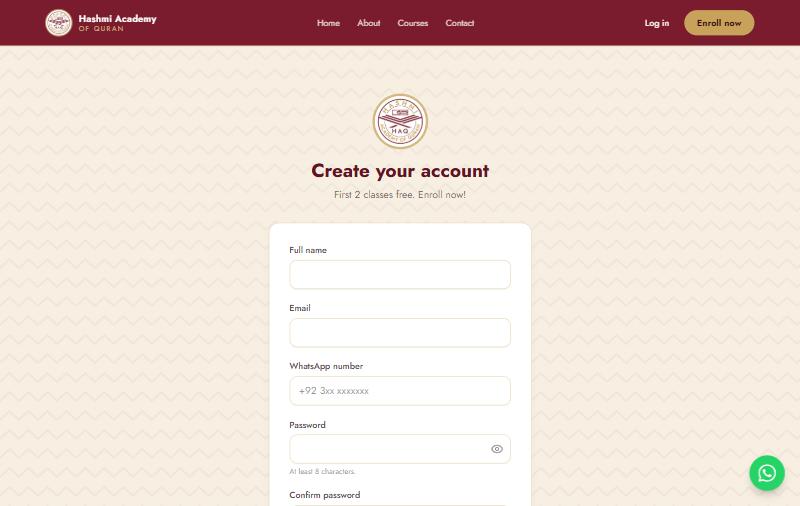
Example screen. Tap to enlarge. -
2
Choose a course and tap "Enroll now"
- Open Courses and pick the course you want.
- The course page shows the class days, time and teacher.
- Tap Enroll now to send your request.
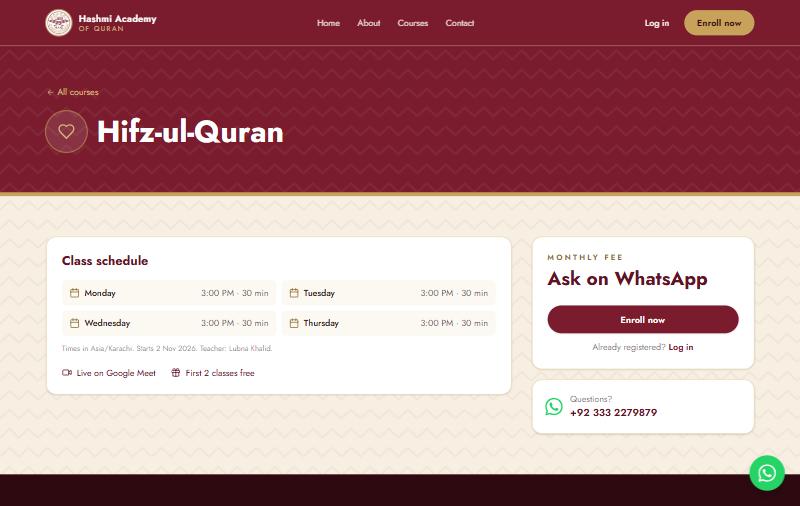
Example screen. Tap to enlarge. -
3
We contact you for your free classes
- Your dashboard now shows New request.
- We will message you on WhatsApp to book your first 2 free classes.
- You can also tap Message us to start to reach us first.
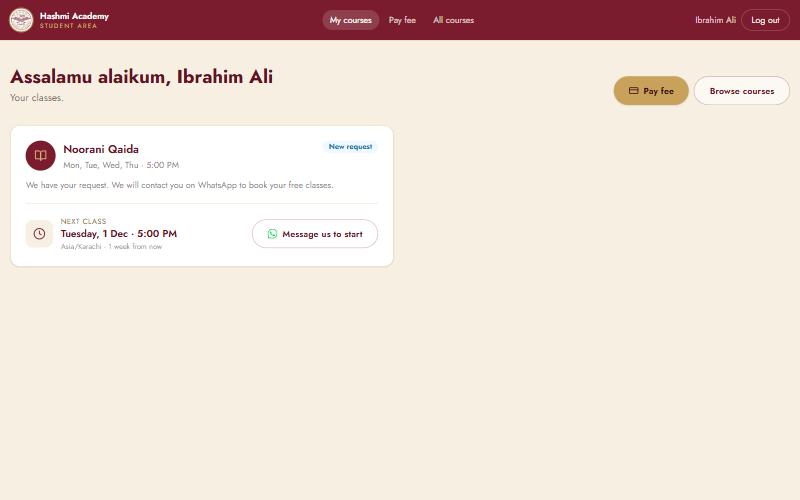
Example screen. Tap to enlarge. -
4
Join your class
- When your classes start, your course shows Free trial or Paid.
- Your dashboard shows the day and time of your next class.
- At class time, tap Join class. Google Meet opens and your teacher lets you in.
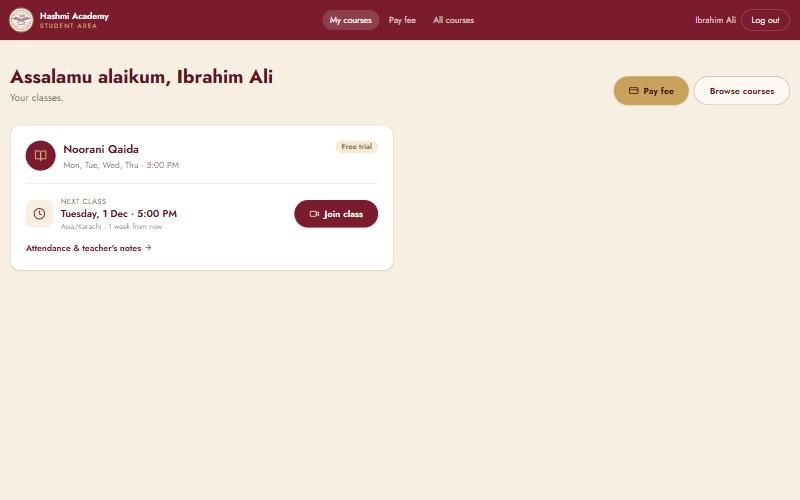
Example screen. Tap to enlarge. -
5
Pay the monthly fee
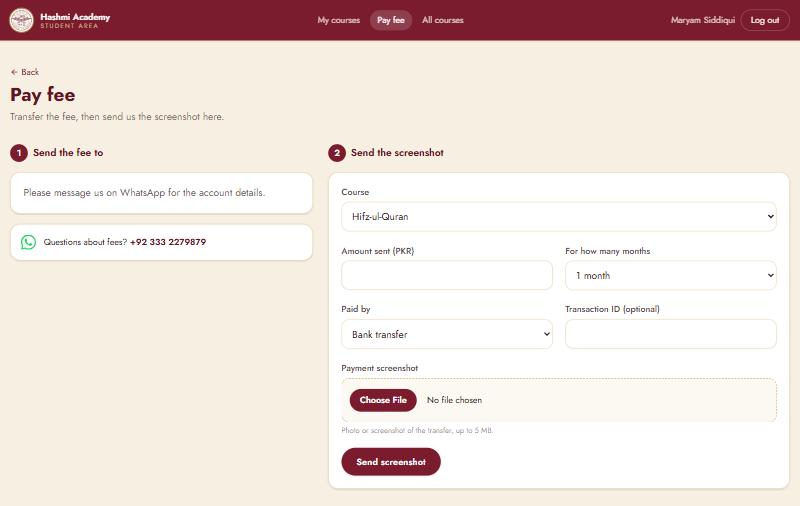
- Tap Pay fee on your dashboard.
- Send the fee to the account shown on that page (bank transfer, JazzCash or Easypaisa).
- Choose your course, enter the amount, attach the payment screenshot and tap Send screenshot.
- Once we confirm it, your course shows Paid and the date it is paid until.
Example screen. Tap to enlarge. -
6
See your progress
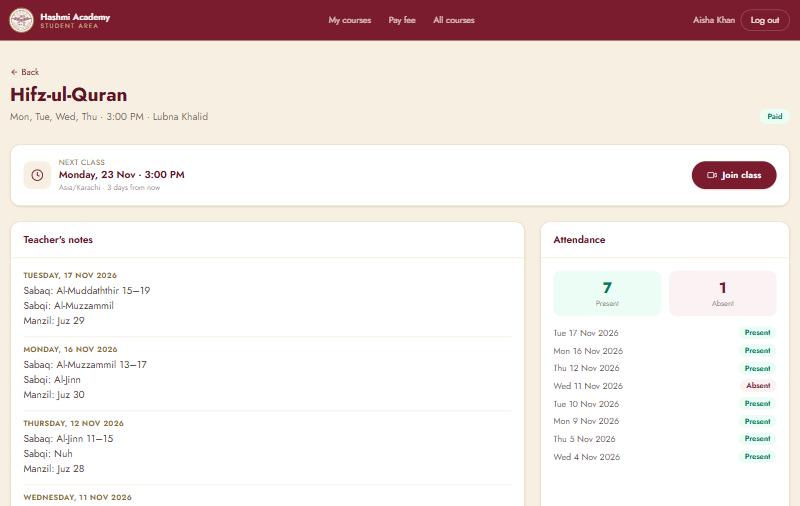
- Tap Attendance & teacher's notes on your course.
- You see your attendance and the teacher's daily notes: sabaq, sabqi and manzil.
- Parents can log in with the same account to follow their child's progress.
Example screen. Tap to enlarge.
What your course status means
We have your request and will contact you.
Join class is not open yet
Your free classes are booked.
You can join class
Your fee is confirmed until the date shown.
You can join class
Your paid month has ended. Tap Pay fee to continue.
Join class is not open yet
Common questions
I do not see the "Join class" button.
The button appears once your free classes are booked or your fee is confirmed. If your course shows "Fee due", pay the fee first. Still stuck? Message us on WhatsApp.
Which time zone are the class times in?
Class times are shown in Pakistan time (Asia/Karachi). Please check the time difference if you live abroad.
What do I need for the class?
A phone, tablet or computer with internet, and headphones with a microphone if possible. On a phone, install the Google Meet app.
I forgot my password.
On the log in page, tap "Forgot password?" and we will email you a link to set a new one.
I sent the fee but my course still shows "Fee due".
We check every screenshot by hand, so it can take a little time. If it has been more than a day, message us on WhatsApp.
Still have a question? We are happy to help.
+92 333 2279879